
Submit Case Design Request
📥This where a Producer will submit a case
From their main dashboard, click the ☰ menu icon if the menu is only partially expanded. Alternatively, remain on your dashboard if the navigation menu is already visible.
Go to:
Client Management System → Clients
↓
Clients Page
As a Producer, create a new client or open an existing client profile.

- Inside the client case, use the actions or request menu to submit a Case Design Request when support, analysis, or recommendations are needed from a Case Design Manager or Administrator.
- Open the case or launch GrantAI with the client selected (GrantAI button has a purple-to-pink gradient.)
- Click Request Case Design
-
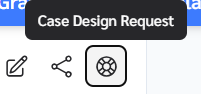
6. Add case details, notes, urgency level, and attachments if needed
7. Click Submit
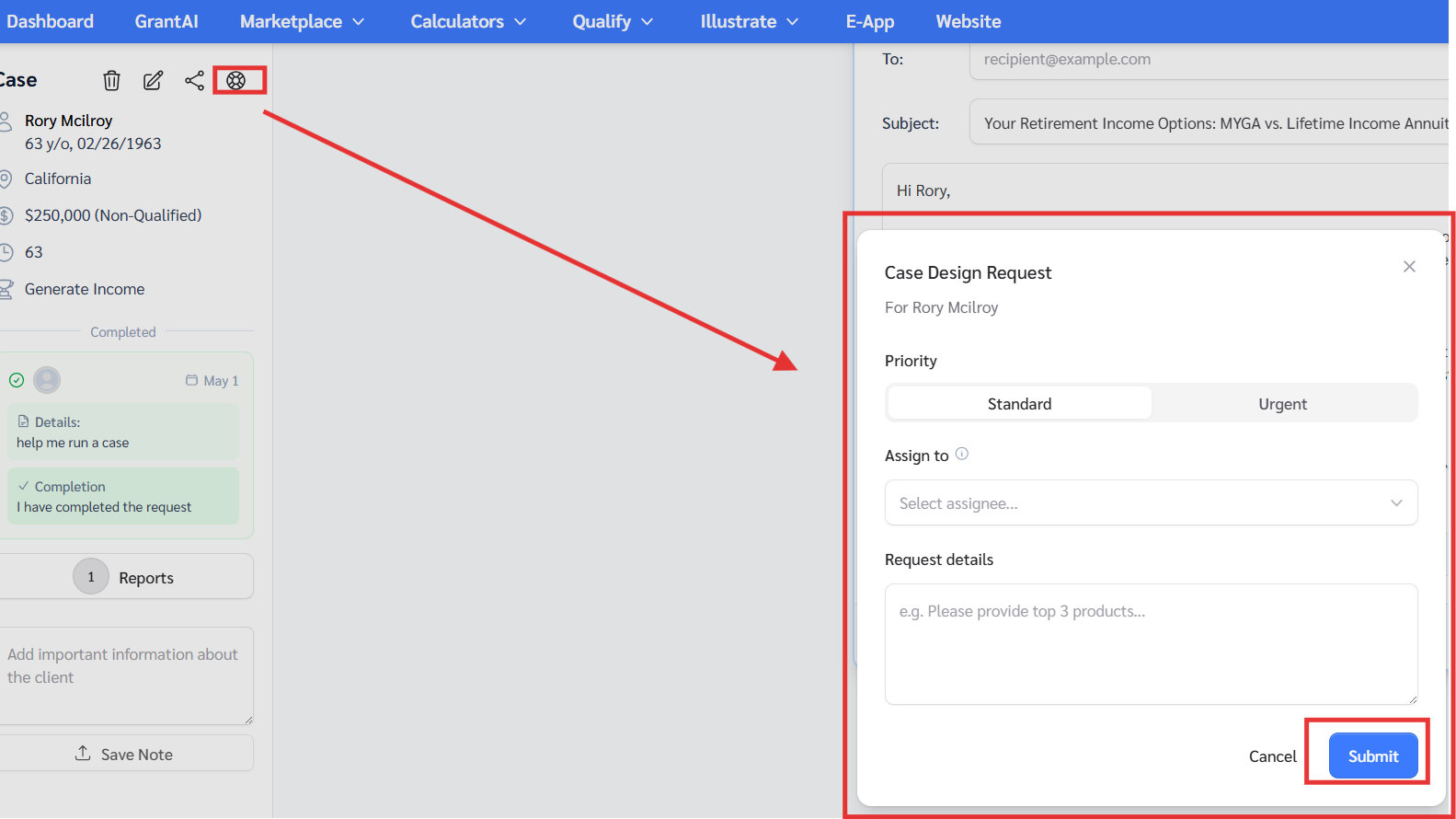
The request is submitted together with the associated client profile and case information. This allows the Case Design Manager or Administrator to immediately access the case without needing to re-enter information or recreate the workflow.
↓
Once submitted, the Producer is supported through the Case Design workflow. Case Design Managers and Administrators can review the request, access the client case, run analysis, prepare recommendations, save reports, and provide updates directly within the same client record.
↓
The Producer primarily monitors updates and receives platform and email notifications as the request progresses, is updated, or marked completed.
Once submitted, it is routed to the case design queue for Administrators and Case Design Managers.
Case Design Manager / Administrator Workflow
From their main dashboard, click the ☰ menu icon if the menu is only partially expanded. Alternatively, remain on your dashboard if the navigation menu is already visible.
Go to:Case Design Requests
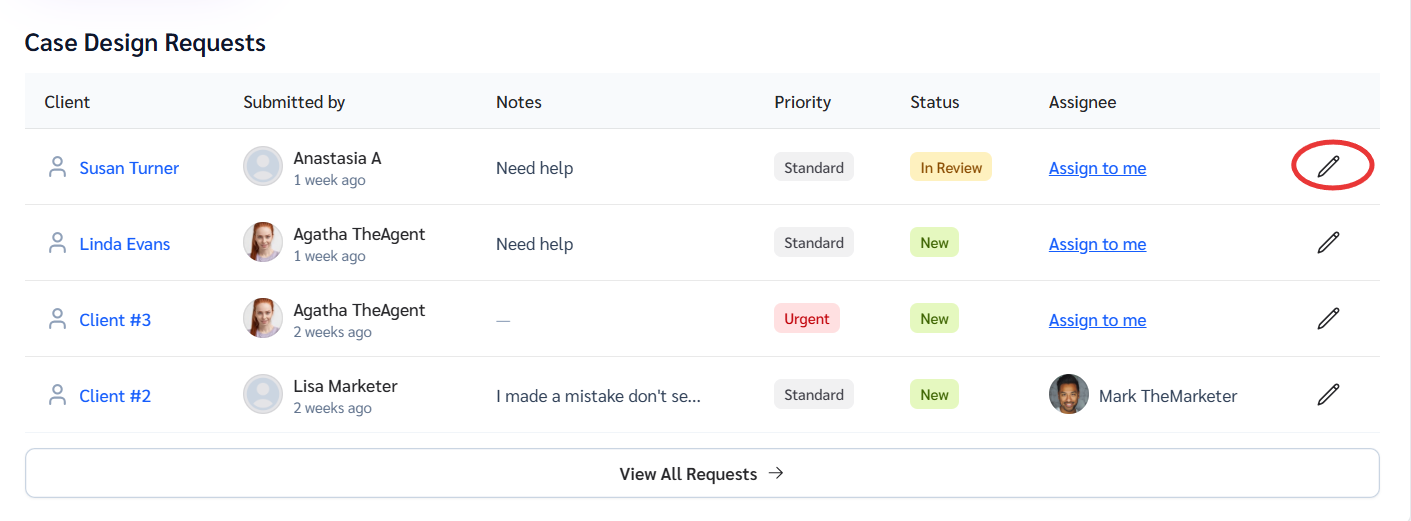
Case Design Managers and Administrators use this queue to support Producers and manage incoming Case Design Requests. (First panel on the main dashboard)
↓
Under the Case Design Requests page, you can:
• Review client and case information
• View request notes, priority, status, and assigned user
• Assign requests to yourself or another supported team member
• Reply to and manage requests throughout the workflow lifecycle
• Transition directly into the associated client case to complete the active case work
Filter Options - Case Design Requests Queue

- Open — Displays active Case Design Requests that still require review, updates, or ongoing work
- All — Displays the complete request history, including new, in review, completed, and previously processed requests
- ✏️open the request in the client portal and review the client details.
Note: After you do this, the client will be moved into your client management system as well. You can also find it in your main dashboard under “Recent clients.” (2nd panel on your main dashboard. Technically, it transitions into: Client Management System → Clients
↓
After opening the request, select the associated client case to continue working on the active case using GrantAI, calculators, Illustrator, reports, notes, and other available tools.
Below is an example of what appears on your main dashboard. Simply click the client to open and continue working on that case. The “Current” case displayed is the active case the system will use throughout the workflow.
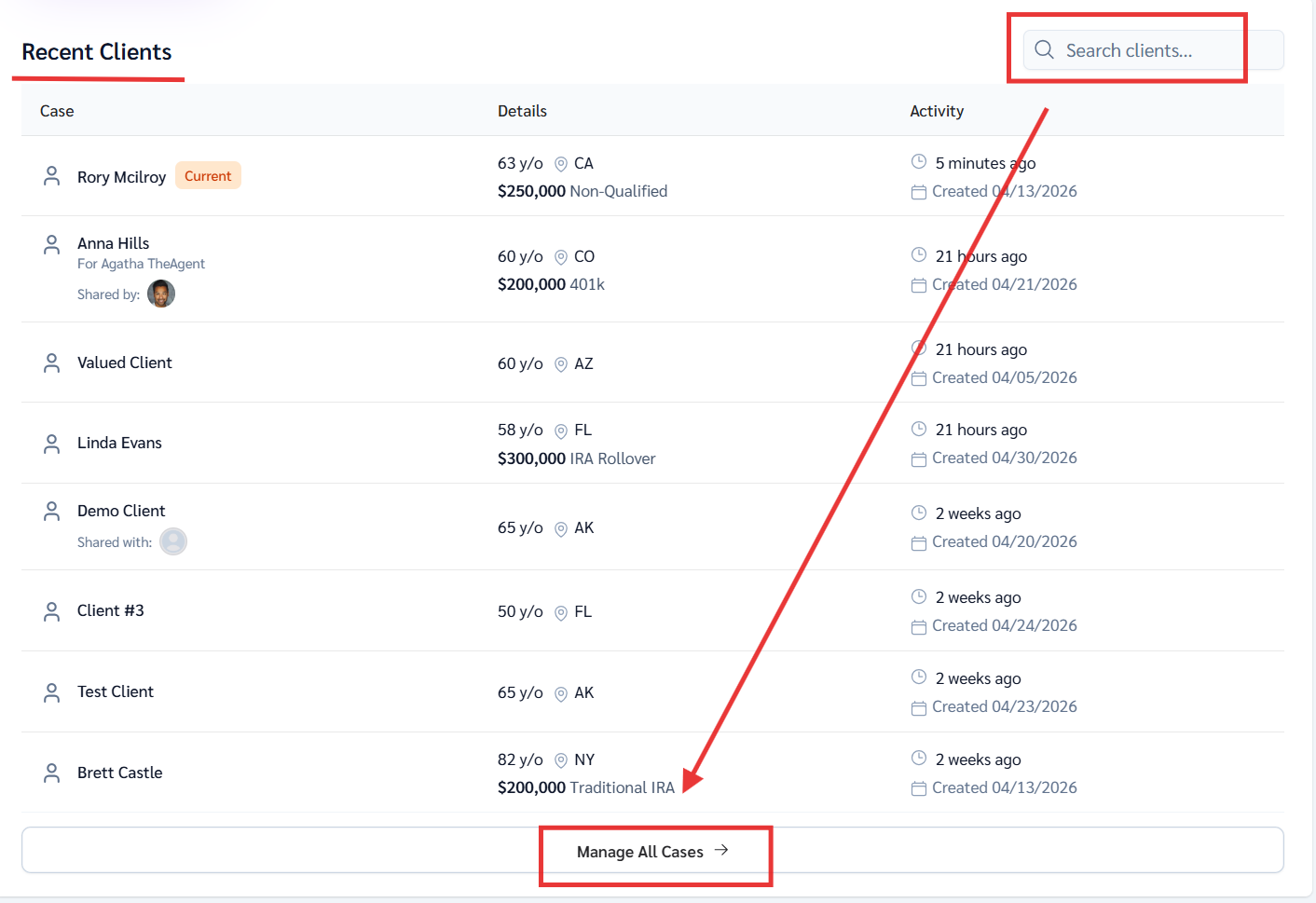
- You can use Search Clients to locate any relevant clients. or you can also click on manage all cases from your dashboard, where you will be able to see the most recent clients you have been working on.
- Final step of communication: Once you have the information, please open it and monitor the left column for any notes and status updates. In addition, please review the Grant AI side as well to confirm whether there is a report or any notes on the page regarding what your team has submitted or what you have provided.
This screenshot shows what appears when you open the client case. The communication and collaboration area is located in the left column. Depending on the device or screen size, the layout may adjust to a single-column view, with notes and communication sections appearing at the top. All case-related activity and tools remain centralized within this area of the case.
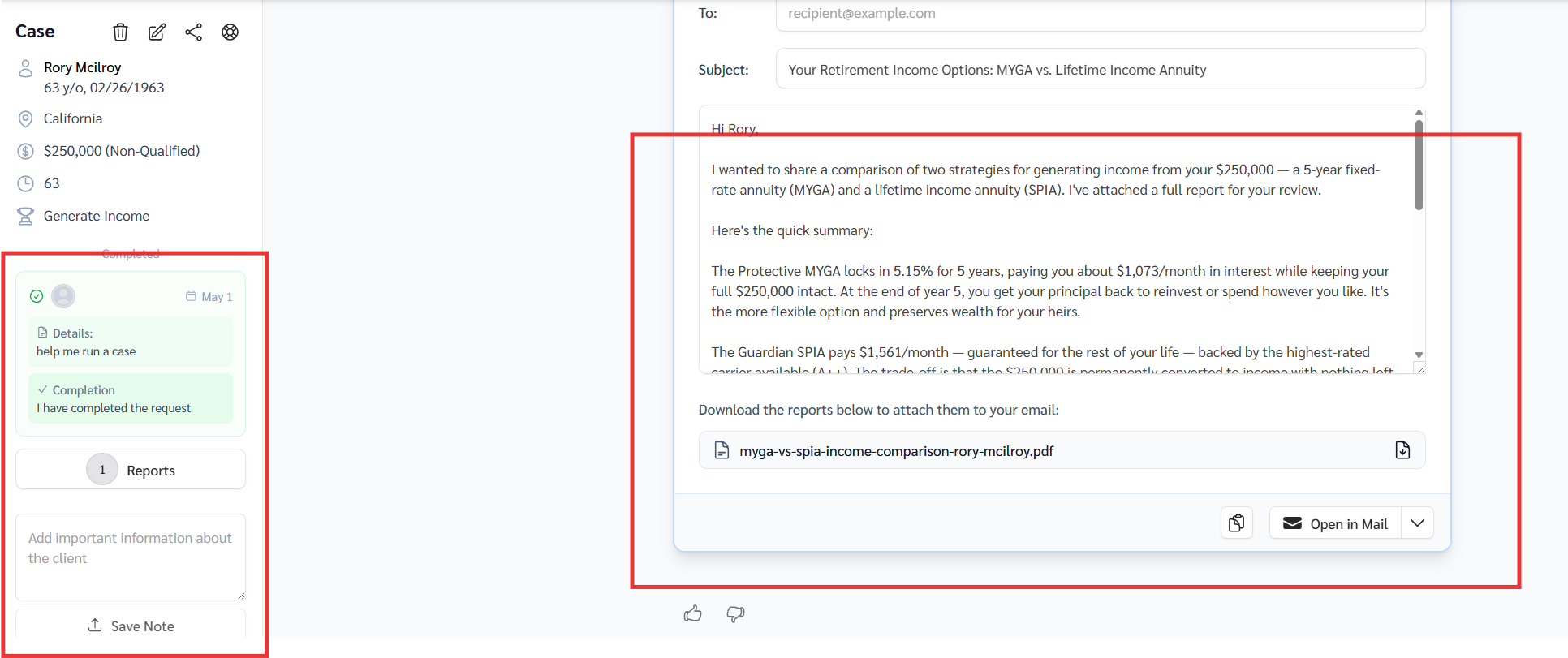
Once the Case Design Manager or Administrator replies back to the Producer, the Producer will receive an email notification confirming there has been an update to the Case Design Request. Be sure to keep the request status updated throughout the process, including when marking a request as completed, to help maintain an organized and efficient workflow.
If you have questions about this process, please contact Customer Support:
- Email: help@annuitiesgenius.com
- Use the blue chat bubble inside the platform to send a message
- Call: 949-600-7707