
Case Sharing
Case Sharing allows you to securely share a live client case with another individual for collaboration purposes. Both users work from the same real-time case file, helping avoid duplicate versions, exports, or confusion over updates. This feature is helpful when working with assistants, marketers, case design managers, or business partners, and access can be removed at any time.
- Please navigate to the Main Dashboard, or select ☰ Menu if the page is partially open.
- On your main dashboard, you can create a new client. The process will guide you through the steps to grant the necessary permissions for GrantAI to share a case.
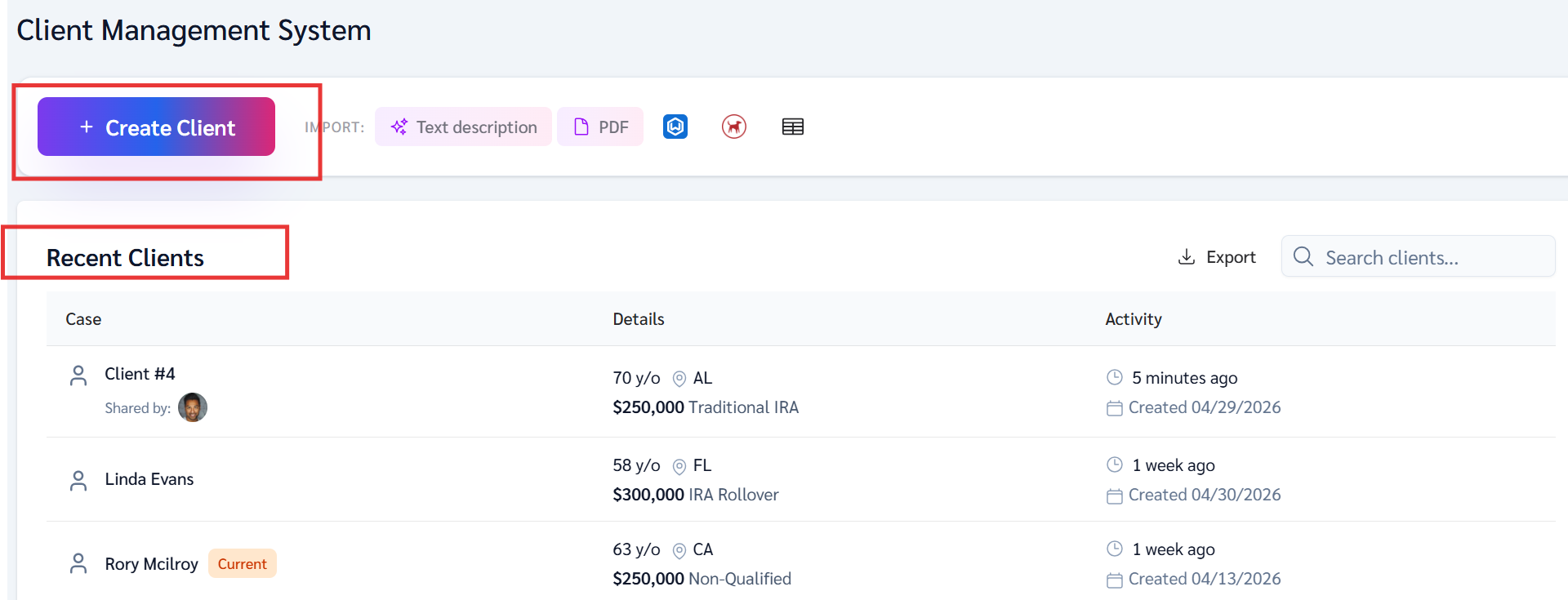
Alternatively, you may access this directly from your dashboard under Manage all cases.
In the Recent Clients section, find the client you would like to share the case with, and then select Client or + Create Client. You can access the Clients page using the following link: https://app.annuitiesgenius.com/crm/clients
Please open the case, or click on the client you need assistance with, or if you need to share the case.
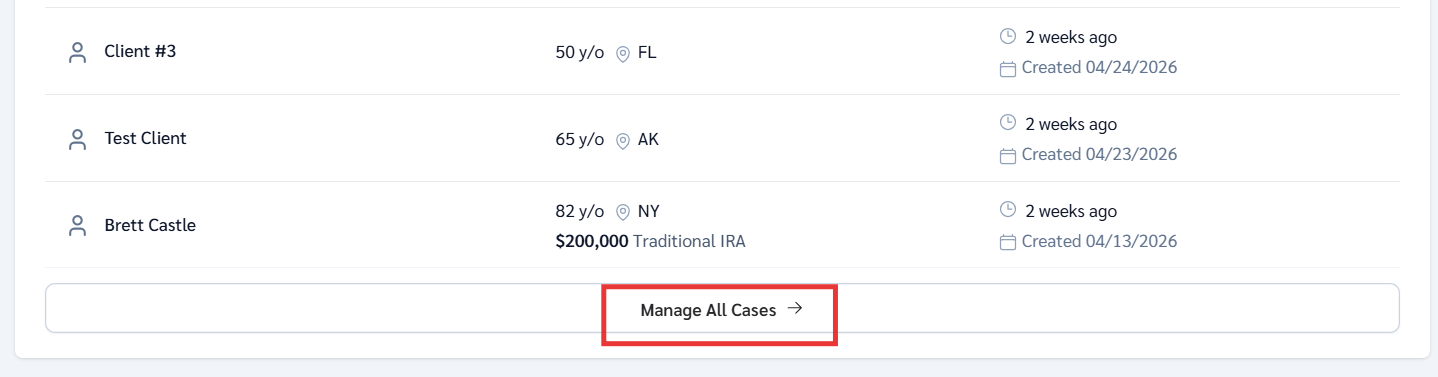
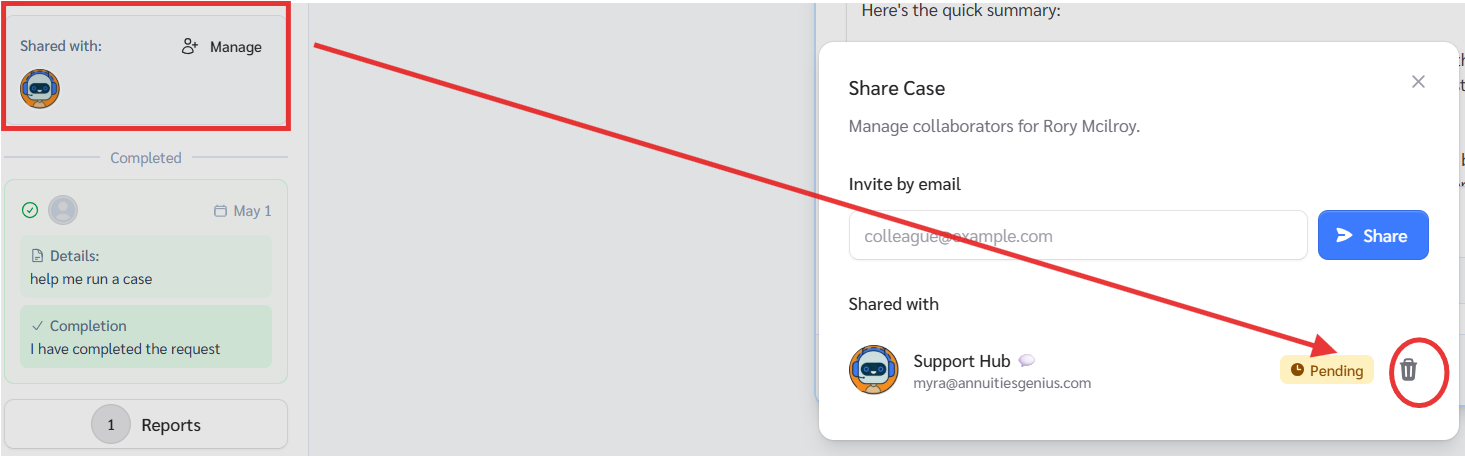
Click the Share Case option
- Once you are inside the client profile, you will see the communication tools located in the left-hand column of the case when using a desktop.

- If you are using a mobile device, simply open the CRM dropdown and you will see the case options at the top, including the Case Sharing option.
- Case Sharing allows you to securely share a live client case with another Annuities Genius user. Both users will access the same live case in real time without creating duplicate versions or exports.
- enter the email address of the Annuities Genius user you would like to share the case with
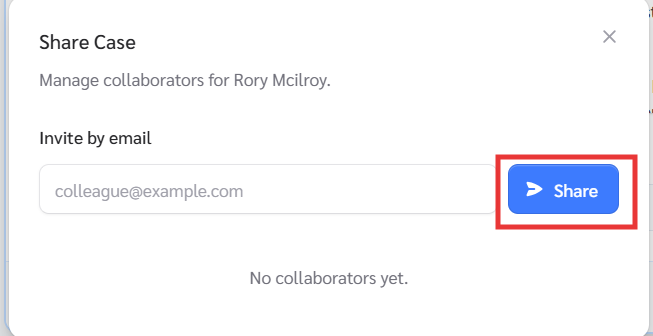
If they don't have an account you can send it but they will have to create an account
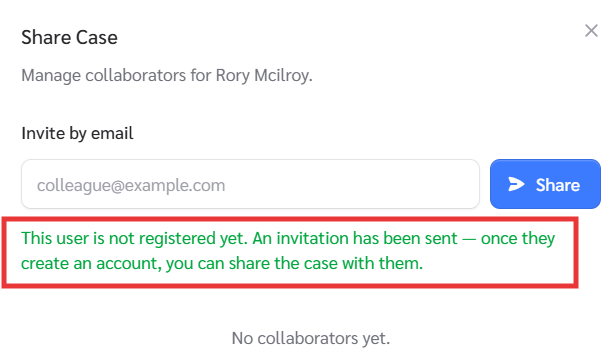
Check your case
- You will receive an email notification once your marketer replies 📩
- Go back to the ☰ Menu /Main Dashboard
- You can find your client case in the case management system, which is always available on your main dashboard, or use this link to access it as well: https://app.annuitiesgenius.com/crm/clients
- You will see:
- Who it was assigned to - Shared by:
- What stage it’s in - red/yellow/ green
- When it was last updated - Activity
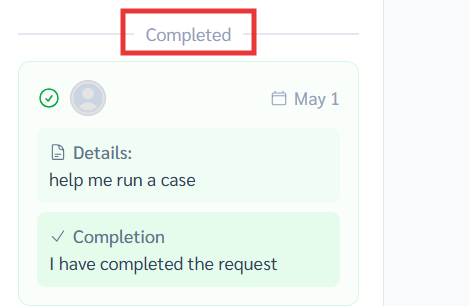
What the statuses mean
- New → No one has picked it up yet (Red)
- In Progress → Someone is working on it (Yellow)
- Completed → It’s done and ready for you (Green)
If you no longer wish to share the case, you may simply click on the person you shared it with and delete it so they no longer have access to it.
If you have any questions, please reply to this email, contact us at help@annuitiesgenius.com, use the blue chat bubble for support, or call us at 949-600-7707.