
Case Design Manager
1. Managing Incoming Case Work
A producer may submit a Case Design Request, or you may begin work directly from the Client Management System both workflows connect to the same client case. These features can be accessed from your main dashboard. If your dashboard is collapsed, use the hamburger menu (≡) to locate the available tools and workflow sections.
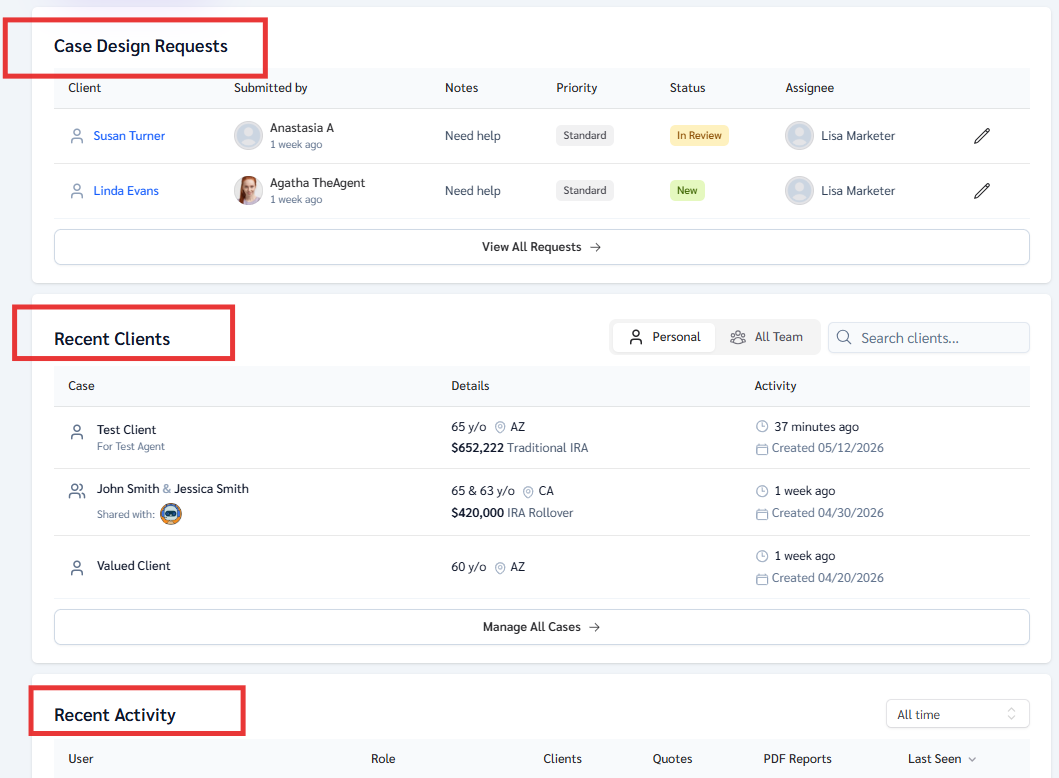
You will find three panels as follows:
Case design requests for incoming requests.
Recent clients: a client management system where, after you open an case design request, clients move through the process.
Recent activity: where you can view analytics showing what your team is doing while running the workflow.

2. Access or Create the Case
Search for and open an existing client case, or create a new client and case if needed. Once created, assign the case to the appropriate producer.
All reports, notes, uploads, and updates remain connected to the client profile.
Create the case
3. Build and Update the Case
Update an Existing Case
Use tools such as GrantAI, calculators, Marketplace, or the Illustrator to run analysis and build recommendations.
Save reports, add notes under the GrantAI section, upload documents, and continue updating the case as new client information becomes available.
4. Collaborate with the Producer
There are two main ways to collaborate with producers:
Case Design Request
Use this option when a producer needs support from a Case Design Manager
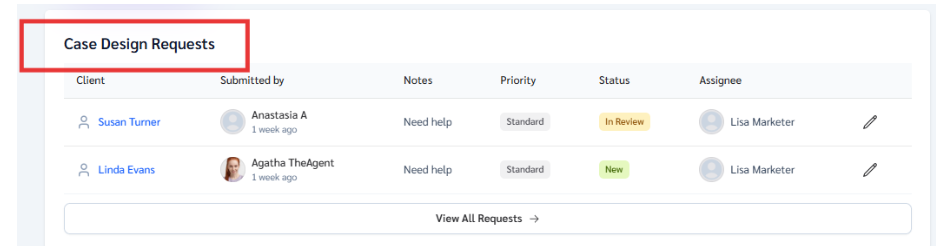
- Open the request
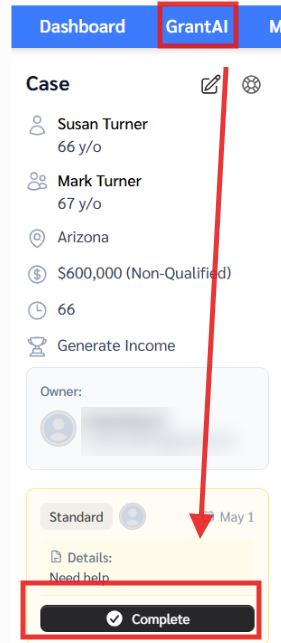
- Assign the request to yourself
- Complete the analysis and updates
- Save reports or add notes inside the case
- Mark the request as Completed once finished
Make sure the request is marked as Completed so the producer receives the notification and the workflow updates properly.
Share Case
Use Share Case when you want to give someone access to a completed or in-progress case.
- Enter the recipient’s email address
- The recipient will receive access to the case
- If they do not already have an account, they will be prompted to create one
This is commonly used when collaborating with producers, admins, or external agents.
5. All Activity Remains Connected
Team Activity
All reports, notes, uploads, conversations, and updates remain connected to the client record throughout the lifecycle of the case.
Shared cases remain accessible to use

Areas You Can Access
Client Management System
Access personal or team client records and cases.
https://app.annuitiesgenius.com/crm/clients
Case Design Requests
View incoming requests and manage assigned work.
https://app.annuitiesgenius.com/team/case-design-requests
Team Activity
Monitor individual and team activity across cases.
https://app.annuitiesgenius.com/team/activities
Members
Manage team structure, access, and permissions.
https://app.annuitiesgenius.com/settings/teams
Example Workflow
A producer submits a Case Design Request for a client needing support with an income strategy. You open the request, assign it to yourself, and review the client details.
From there, you access the client’s case through the Client Management System or create a new case if needed. Use GrantAI, calculators, or other available tools to complete the analysis, then save reports and updates directly inside the case.
Once finished, share the case with the producer and mark the Case Design Request as Completed so the producer receives the notification and the workflow updates properly.
If revisions are needed later, you can return to the same case and continue updating it without recreating the client.
Summary
- Work begins through Case Design Requests or the Client Management System
- All case activity is completed and saved within the client record
- Collaboration happens through Case Design Requests or Share Case
- Reports, notes, uploads, and activity remain connected to the case throughout its lifecycle
- Mark requests as Completed once finished to properly notify the producer and finalize the workflow
If you have questions or need assistance, contact Customer Support at help@annuitiesgenius.com, use the blue chat bubble inside the platform, or call 949-600-7707.